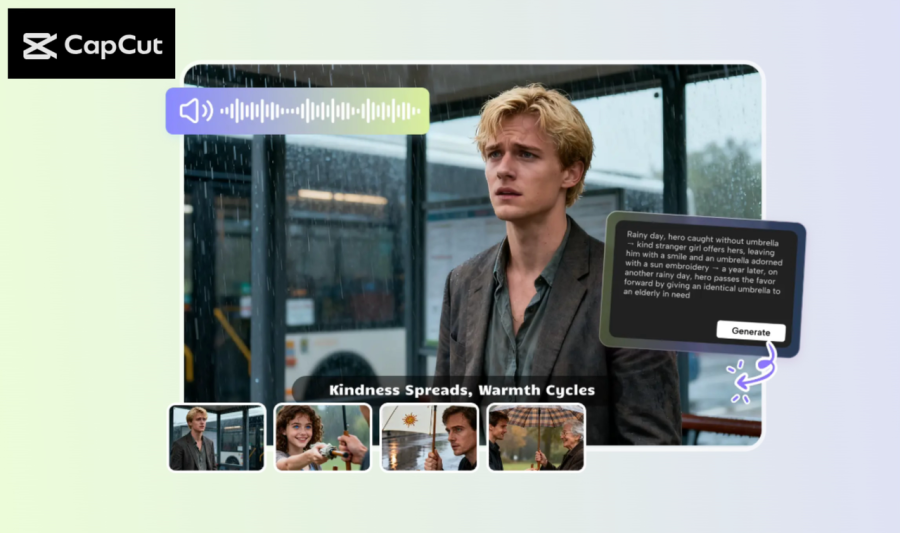
Manual segmentation of video scenes on YouTube, short films or social media can be time consuming. It is up to you to determine the appearance of every scene, the point of transition, and the duration of each segment. This may be a tedious and bewildering process, particularly when you are planning a lot of scenes.
The solution comes in the form of CapCut Desktop Video Editor, which has the AI Storyboard feature. It is capable of generating an entire scene breakdown without requiring hours of planning. Even tools such as AI Writer can be used to assist in writing your own video script. Remember that CapCut PC is not absolutely free, and certain high-tech AI capabilities require a fee.
What is CapCut PC AI Storyboard
AI Storyboard is a CapCut Desktop Video Editor feature that is able to turn your script into a complete video scene breakdown automatically.
It allows creators to plan their videos quickly and have all the scenes arranged without working manually. You are able to select various styles, such as cinematic, cartoon 3D or even futuristic, the time of every scene and even voiceovers. This simplifies and makes the video planning straightforward. To get more information and begin using it, go to the official page: CapCut AI Storyboard. With AI Storyboard, you can have professional and polished videos.
Why AI Storyboard Video Scene Breakdown
Hand calculation of scenes is time-consuming. The AI Storyboard of CapCut Desktop Video Editor has the capability of automatically dividing your video into various scenes. This is time-saving and minimises errors. You can see easily how the individual scenes connect, and it is possible to edit before in a very short time. You can also select various video styles such as cartoon 3D, cinematic or futuristic and your chosen aspect ratio to fit your platform with AI Storyboard.
The AI aligns voiceovers on a scene-to-scene basis, which means that you do not have to record individually. It is also possible to insert captions, stickers, or music and test what works better without spending time. This will assist you in creating videos which are creative and professional.
AI Storyboard will ensure that all your scenes are organized and that you can easily change them in the event of need. It is important to note that CapCut PC provides free tools, and other sophisticated functionalities can be paid for with a subscription.
How to Auto-Generate Video Scene Breakdown with AI Storyboard
Step 1: Install CapCut Desktop Video Editor
Begin by downloading CapCut Desktop Video Editor from the official site. The AI tools should be able to operate without issues, provided the PC meets the minimum system requirements. CapCut Desktop has some premium AI features that need to be paid for. Install it according to the on-screen instructions of Windows or macOS. After installation, start the application to start making your video storyboard.

Step 2: Start AI Storyboard Workspace
Launch Open CapCut Desktop Video Editor and choose AI Video Maker on the home screen. This gives you the workspace on which to generate your video scenes. You can choose Instant AI Video, which is a sketchy storyboard. On the right-hand panel, you are able to choose a video style, the aspect ratio, and the time within which each scene should take. These options assist you in aligning the video to the type of platform/project and then creating the storyboard.

Step 3: Scene Editing and Song Editing
Elements and Music appear on the left panel. On Elements, it is possible to add captions, stickers, or effects and to adjust their intensity to emphasize essential portions. Under the Music segment, find or browse music to find the perfect music to match your video. You are able to do minor adjustments to find what suits you best. Application of the AI Storyboard feature here will enable you to be creative and refine the storyboard prior to export.

Step 4: Save as Export or Save as Edit
Once you are happy, a click on the Export button and a file name, resolution (up to 4K), and other output options is selected. Still want to make further adjustments. Click the new button Edit More to adjust the timing of scenes, add effects, or clean up captions with the professional features of CapCut PC.

Conclusion
Planning the video scenes is easy and quick with CapCut Desktop AI Storyboard. It does not take hours of time to produce neat, professional storyboards. Add captions, voiceovers, music, and styles to make your video interesting. Note that there are certain advanced features that demand a paid subscription. CapCut Desktop AI Storyboard is the new tool that saves time and allows for the production of high-quality videos immediately. Experience CapCut Desktop AI Storyboard yourself and make your video today!