Most students encounter the issue of school project presentations or videos not being properly framed on classroom screens. A tall, wide, or ill-framed video does not enable the audience to properly view the content. A properly framed video enables students to concentrate and maintain organized presentations. Cropping with CapCut Desktop Video Editor is a simple technique that permits one to crop video to size and perfectly fit screens. Even novices can master the technique in a short while. Employing the simple method, students are able to deliver presentations as clean, neat, and professional for greater classroom impact.
Why Cropping Presentations is Important
Videos that are not the proper size to fit classroom screens may appear weird. Important parts of the presentation can be trimmed off, and students will miss important details. For instance, a video of a science project can display only half of an experiment. Class presentations or group project videos might have headings or charts cut off from the screen. Even digital posters can look cropped improperly. Cropping ensures the video gets resized to the average classroom screen size, so all information is included. This little act makes presentations clean, straightforward, and easy to understand. With tools such as the CapCut Desktop Video Editor, it is effortless for students to crop video without prior experience. The tool is easy to use, and cropping does not consume time. With proper adjustments, any project video can be easily watched on any screen in school, enhancing understanding and engagement for audiences.
CapCut PC for Cropping School Presentations
CapCut Desktop Video Editor is an easy-to-use software that simplifies editing videos. It is preloaded with capabilities that help students resize videos for classroom screens. The crop feature helps you cut off unwanted fields, and aspect ratios resize the video to a normal screen fit. Frame positioning helps you emphasize important content. CapCut PC is free to install, but some of its capabilities are paid for. Download it from CapCut's official website directly to get the correct one. Even after cropping, you may use other tools such as text overlay or an AI caption generator to mark or label your project. These tools help make the video clearer and more engaging. Even amateur users can edit their videos and make them professional easily. CapCut Desktop Video Editor makes classroom presentations neat, organized, and ready for any display
Advantages of Cropping Presentations using CapCut
Cropping videos from CapCut Desktop Video Editor provides a brief graphical presentation. The unnecessary parts that occupy space are removed, and attention is maintained on the central content. Cropping also has adjustable framing so that videos are ready for various screen sizes or types of projectors without losing vital segments. Cropping is convenient as you will not be required to redo the project or adjust it in class. CapCut PC interface is user-friendly, hence easy for students to edit without technical expertise. Basic free cropping tools and paid tools are available for additional effects where necessary. Cropping is used to make items clearer, more professional, and interesting, therefore making classroom presentations easier to comprehend. Students can emphasize key points and ensure that points are concise. In most cases, using CapCut Desktop Video Editor for cutting makes videos look neat, well-organized, and presentable to watch, improving understanding and audience engagement in class.
Step-by-Step Instructions for Crop Presentations Using CapCut PC
Step 1: Download CapCut Desktop from the Official Website
Download CapCut PC from the official website and ensure you choose the version that matches your computer. Installation is simple and fast. Check that your system meets the requirements before starting. Once installed, open the software to begin editing your presentation video.

Step 2: Import Presentation Video
Click "Import" to upload your presentation video. CapCut desktop Video Editor accepts popular formats such as MP4 and MOV. Once imported, the video becomes displayable in the preview window and timeline. At this point, you can preview the entire video and ready it for cropping and editing.

Step 3: Crop Video to Fit Screen
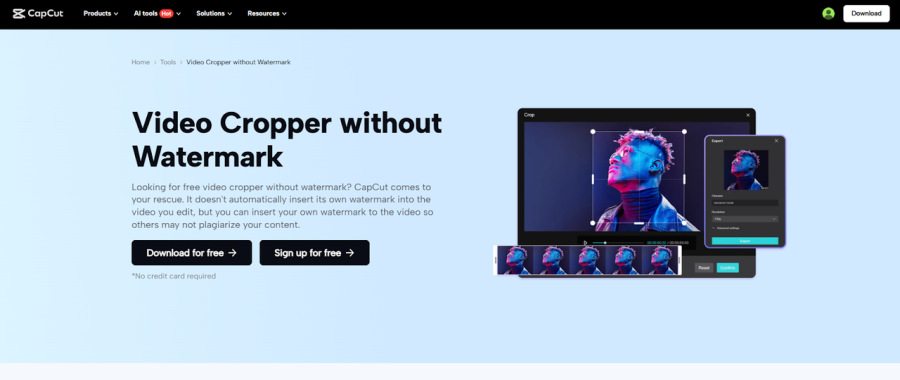
Click on the crop tool in CapCut PC from the toolbox. You can either have a free crop to adjust the frame manually or apply a preset aspect ratio, such as 16:9 or 4:3. Resize the edges of the frame to remove any excess areas while preserving all the crucial content. Use the preview window to view your changes in real-time. Make sure the video is well seated on the classroom screens, and resize until all relevant portions are visible and centered.

Step 4: Export and Share Video
When done, click "Export." Select resolution, frame rate, and file type. Save to the computer or post online to view in class. The presentation is now sized to fit the screen, so everything is in plain sight for viewers and students.

Conclusion
Trimming school presentations on CapCut Desktop Video Editor enables students to make their videos perfectly fit onto classroom screens. Beginners can create pro-level output with easy steps and intuitive tools. Remove unwanted edges and borders, and videos become neat, centered, and easy to watch. Mixed with other functionalities in CapCut PC, like text overlays, transitions, or an AI caption generator, cropping can also lead to enhanced presentation quality. Students can upgrade their assignments to make them more interactive and easier to understand. Begin cropping your videos today and discover just how easy cuts can really make classroom presentations excel.